These are instructions on how to untether your jailbreak of iOS 4.2.1 using the iPhone Dev-Team's 'backup plan' method on Mac OS X.
Currently this beta is limited to iPhone4, iPad, and iPod touch 4G. Bluetooth functionality is disabled for the time being until some issues are resolved.
Requirements:
You will need to have access to the iOS 4.2b3 ipsw and your iOS 4.2b3 SHSH blobs saved. You also already need to be jailbroken on iOS 4.2.1. MAKE SURE YOU BACKUP BEFORE ATTEMPTING THIS AS IT IS A BETA!
Step One
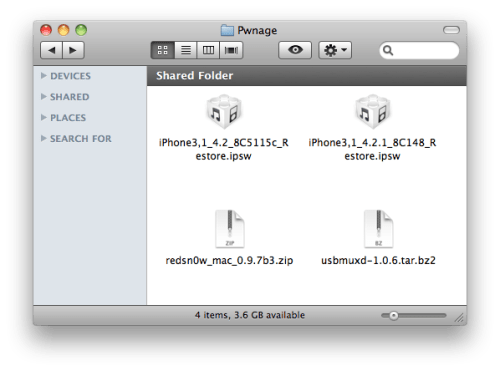
Create a folder called Pwnage on your desktop and in it place:
-
- iOS 4.2.1 ([url=http://www.iclarified.com/entry/index.php?enid=750 new=true]iPhone, iPad, iPod touch)
- iOS 4.2b3 *Only iPhone developers have legit access to this firmware
Step Two
Double click the RedSn0w archive to extract it. Then launch RedSn0w from the extracted folder.

Step Three
Click the Browse button
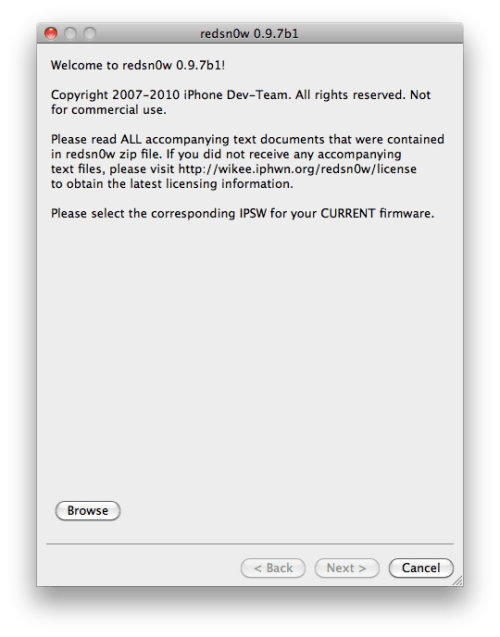
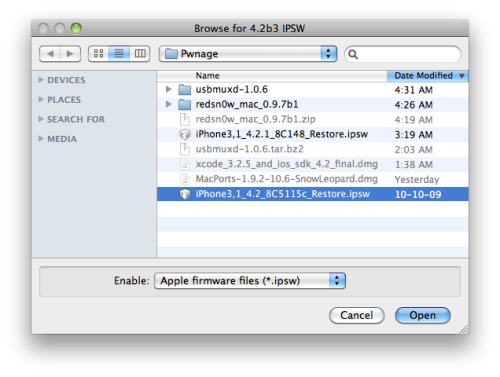
Select the iOS 4.2.1 ipsw from the Pwnage folder on your Desktop and click Open.
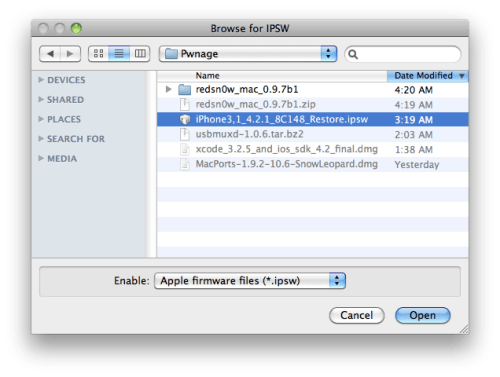
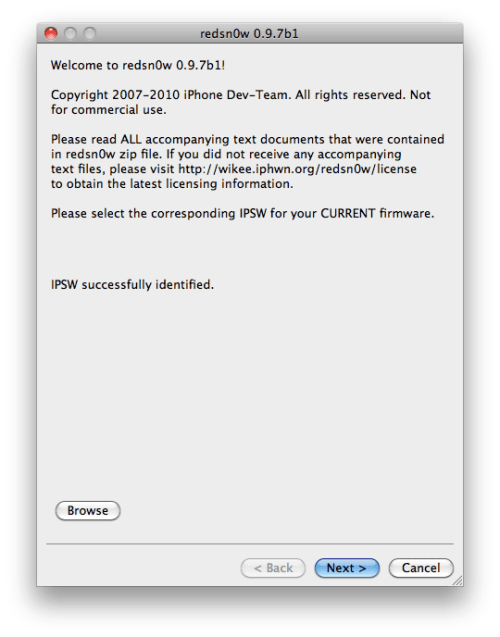
Click the Next button to continue.
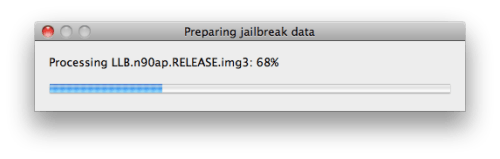
RedSn0w will now prepare the jailbreak data.
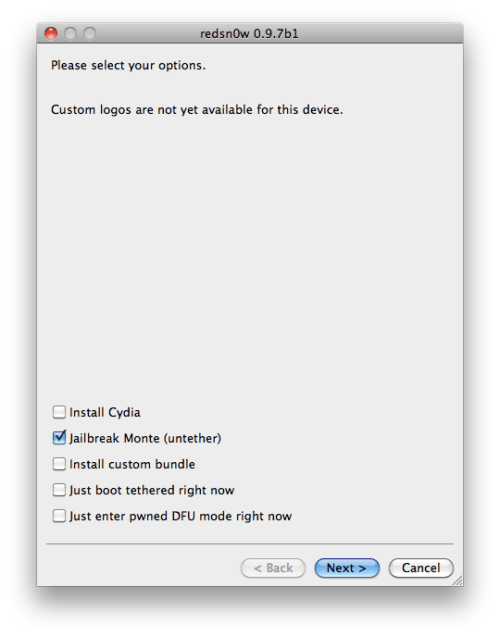
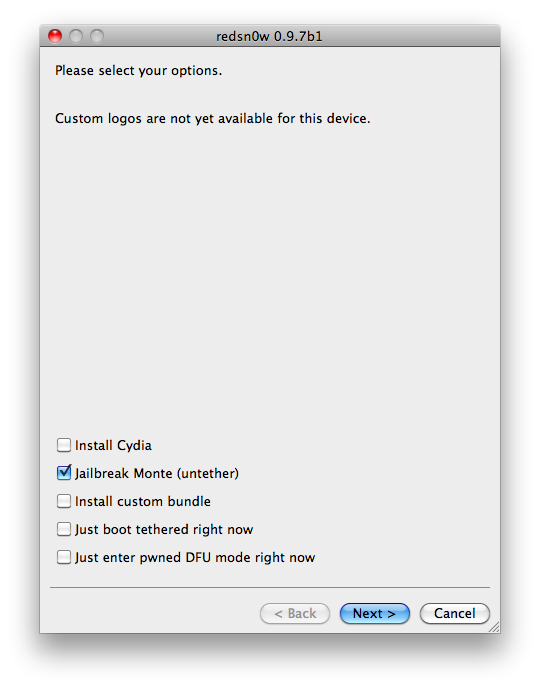
You will now be presented with a list of checkboxes.

Select Jailbreak Monte (untether) from the list of checkboxes. You will be asked to select the iOS 4.2b3 ipsw from the Pwnage folder on your desktop then click Open. Click Next to continue.
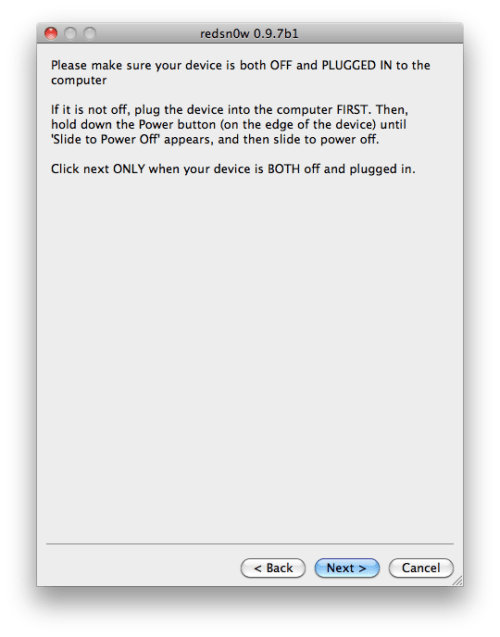
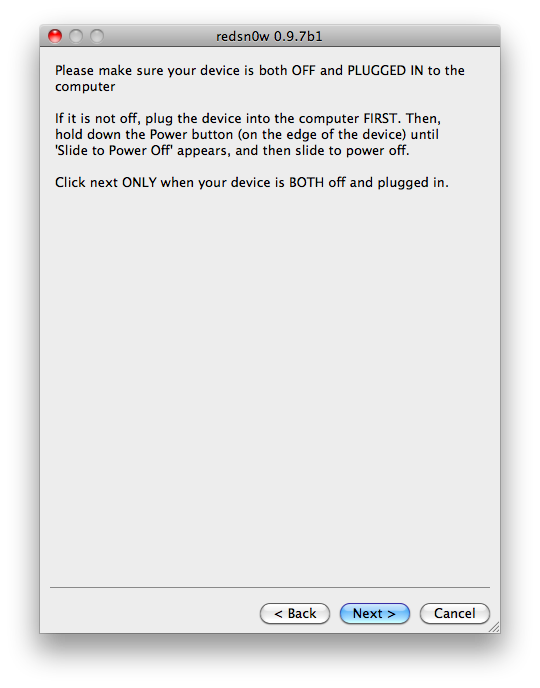
Please plug your iPhone into the computer and make sure its OFF then click the Next button
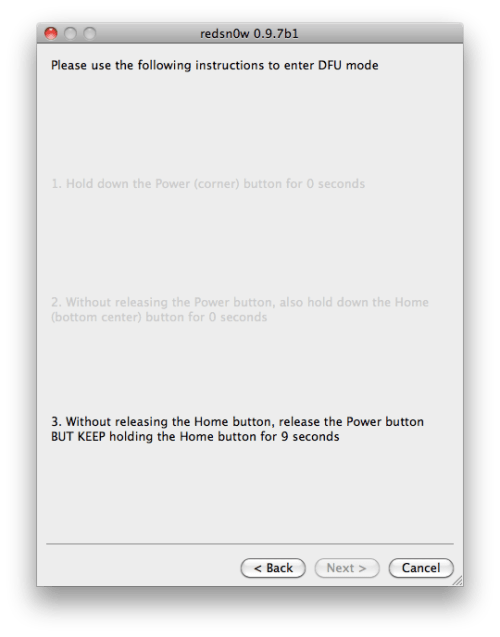
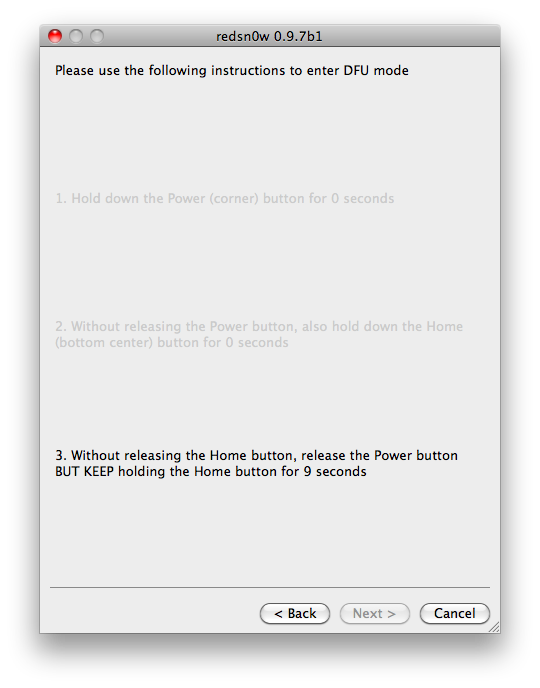
RedSn0w will now guide you through the steps to get into DFU mode. You can find more help with DFU mode here
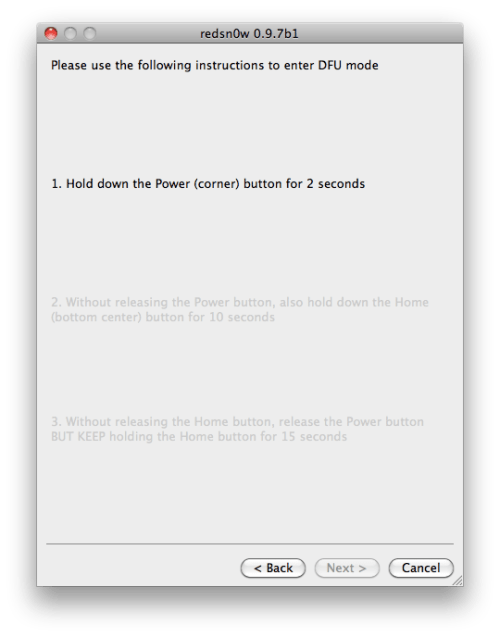
Hold down both the Home button and the Power button for 10 seconds.
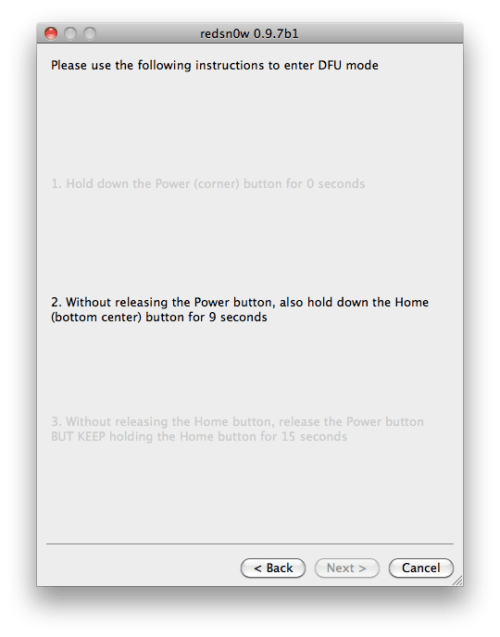
Release the Power button and continue holding the Home button until RedSn0w detects the device.
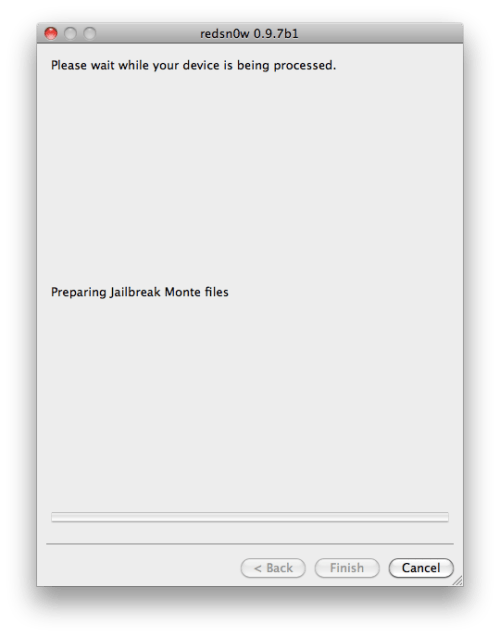
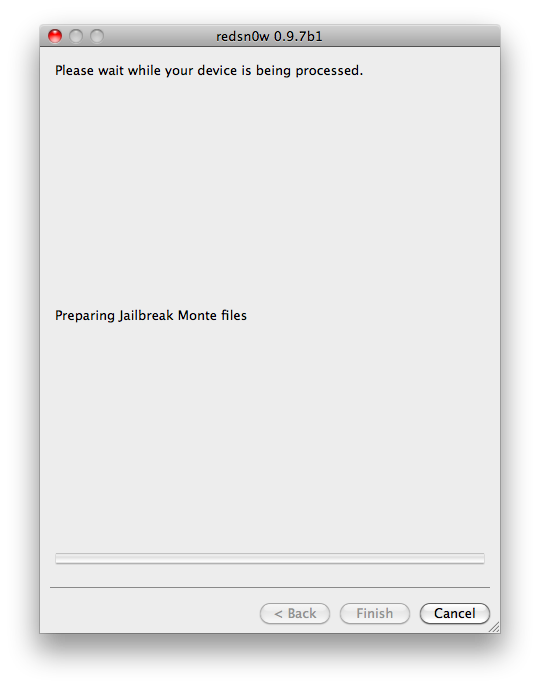
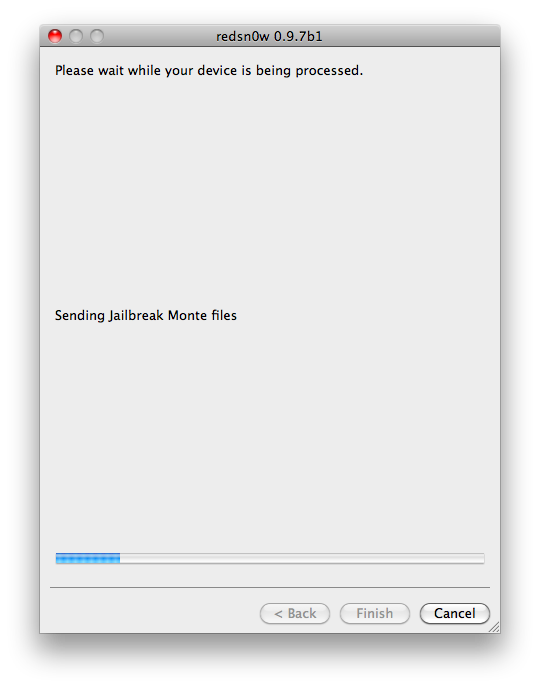
RedSn0w will prepare Jailbreak Monte files, exploit with Limera1n, Upload RAM Disk and Kernel, and Send Jailbreak Monte files.
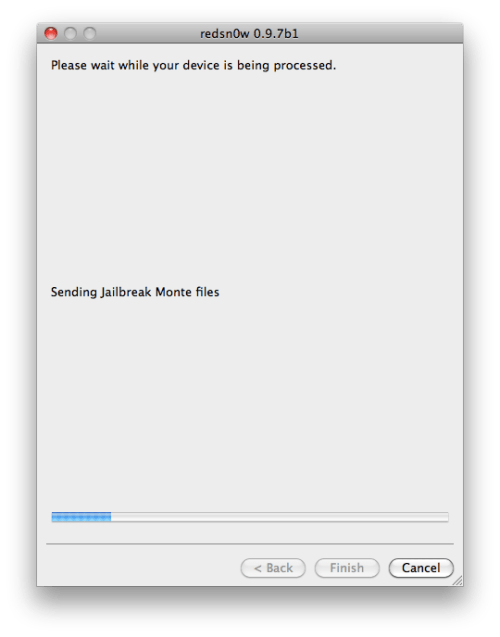
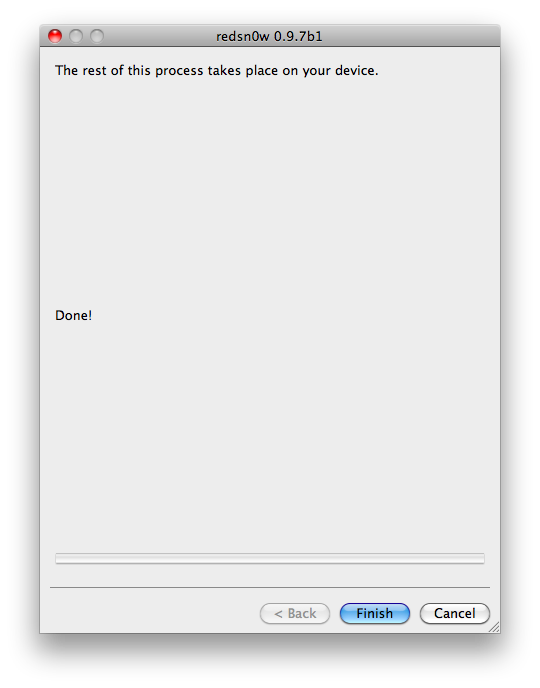
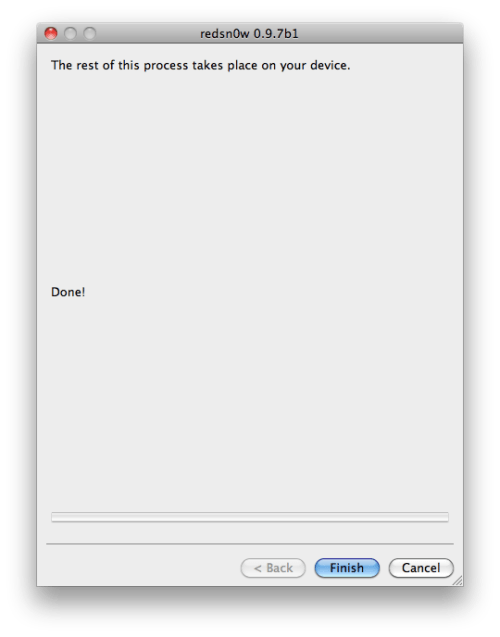
RedSn0w will inform you when it has completed successfully.
Currently this beta is limited to iPhone4, iPad, and iPod touch 4G. Bluetooth functionality is disabled for the time being until some issues are resolved.
Requirements:
You will need to have access to the iOS 4.2b3 ipsw and your iOS 4.2b3 SHSH blobs saved. You also already need to be jailbroken on iOS 4.2.1. MAKE SURE YOU BACKUP BEFORE ATTEMPTING THIS AS IT IS A BETA!
Step One
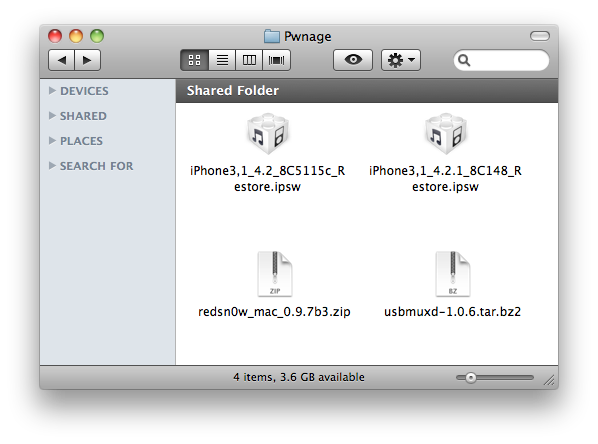
Create a folder called Pwnage on your desktop and in it place:
-
- iOS 4.2.1 ([url=http://www.iclarified.com/entry/index.php?enid=750 new=true]iPhone, iPad, iPod touch)
- iOS 4.2b3 *Only iPhone developers have legit access to this firmware
Step Two
Double click the RedSn0w archive to extract it. Then launch RedSn0w from the extracted folder.
Step Three
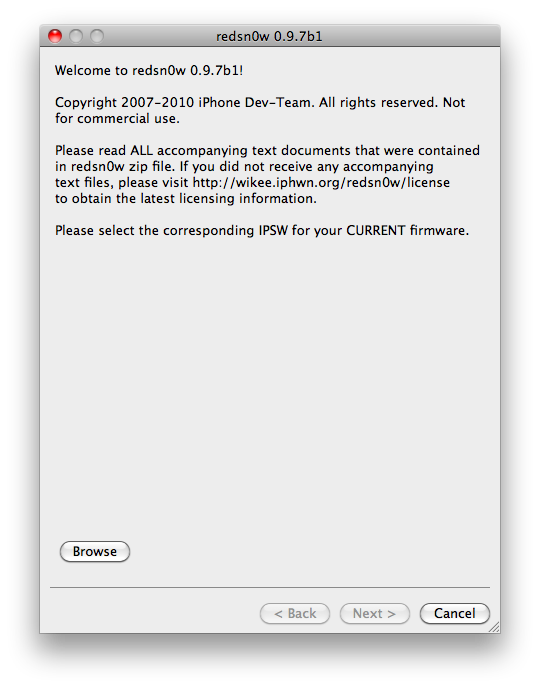
Click the Browse button
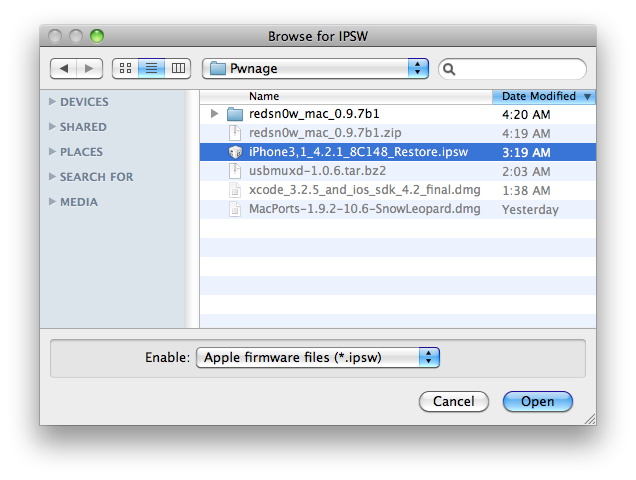
Select the iOS 4.2.1 ipsw from the Pwnage folder on your Desktop and click Open.
Click the Next button to continue.
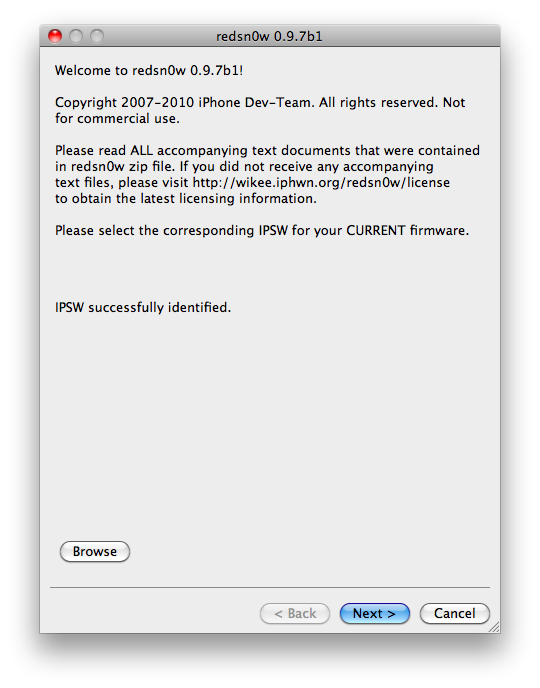
RedSn0w will now prepare the jailbreak data.
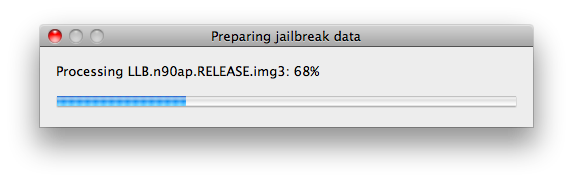
You will now be presented with a list of checkboxes.
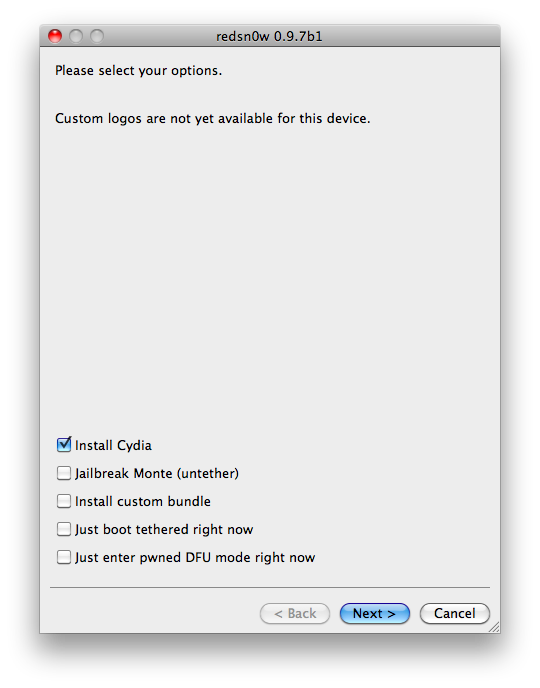
Select Jailbreak Monte (untether) from the list of checkboxes. You will be asked to select the iOS 4.2b3 ipsw from the Pwnage folder on your desktop then click Open. Click Next to continue.
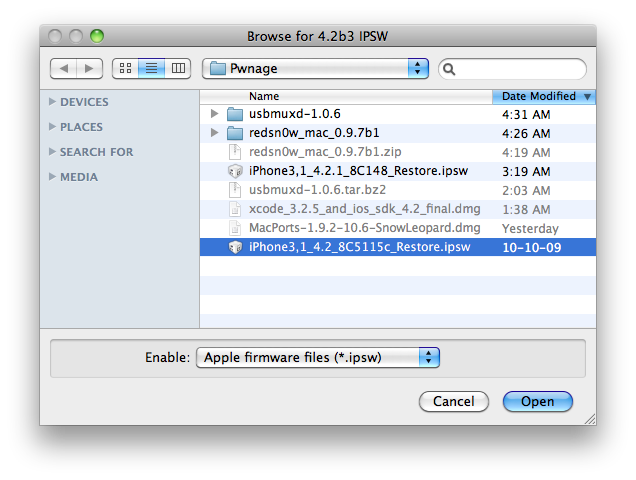
Please plug your iPhone into the computer and make sure its OFF then click the Next button
RedSn0w will now guide you through the steps to get into DFU mode. You can find more help with DFU mode here
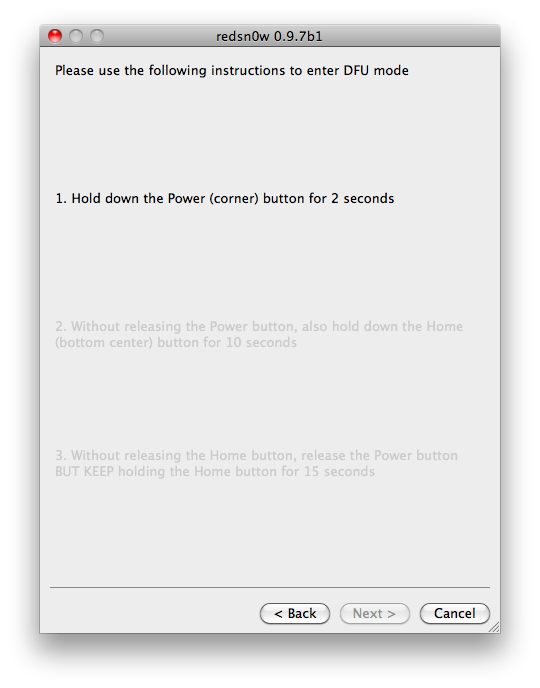
Hold down both the Home button and the Power button for 10 seconds.
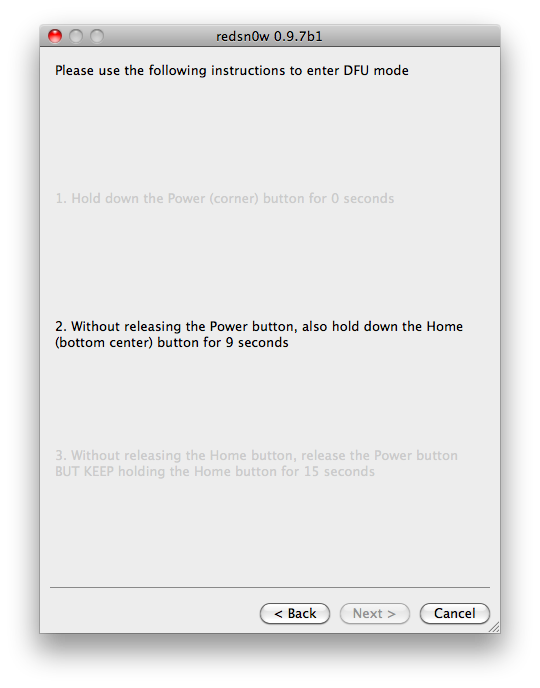
Release the Power button and continue holding the Home button until RedSn0w detects the device.
RedSn0w will prepare Jailbreak Monte files, exploit with Limera1n, Upload RAM Disk and Kernel, and Send Jailbreak Monte files.
RedSn0w will inform you when it has completed successfully.